



|
KnowHow ► Windows & Office
Outlook Reminders Accidentally Dismissed – How to Restore ThemClicked “Dismiss All” by mistake? This step-by-step guide shows how to recover all dismissed Outlook reminders – no third-party tool required. |
The Problem: One Click, Everything Gone
A colleague is working at the PC. The Outlook reminder window pops up, with the dangerous “Dismiss All” button right under the mouse pointer. One click – no confirmation dialog – and over 60 reminders are gone, some going back nearly a year, with around 30 appointments per week in the calendar.
At first glance, no solution seems obvious. But recovery is possible with basic Windows knowledge. This guide was created with Outlook 2016; the procedure works similarly in older versions and in Microsoft 365.
Step-by-Step: Restoring Dismissed Reminders
Step 1: Change the View in Outlook
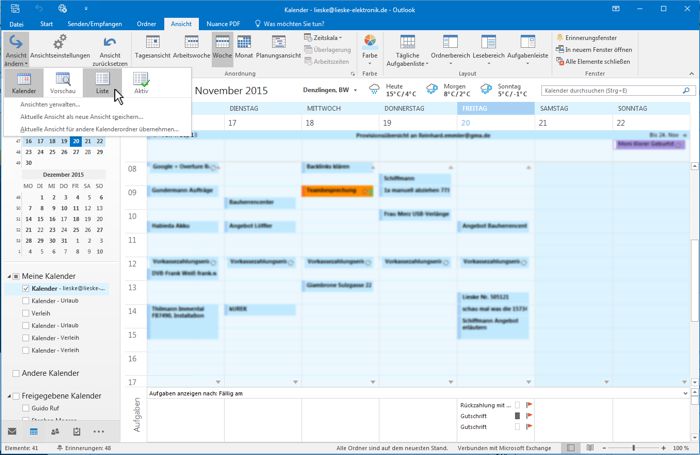
Click the View tab and then click Change View. Select the entry List.
Step 2: Open Column Settings
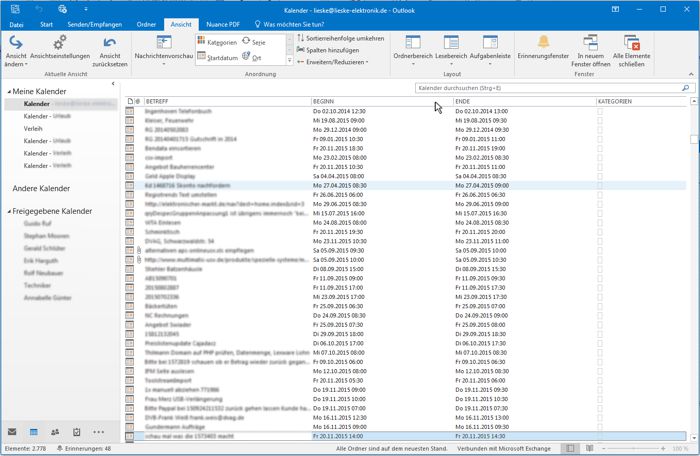
Right-click on the column header row to open the context menu.
Step 3: Context Menu
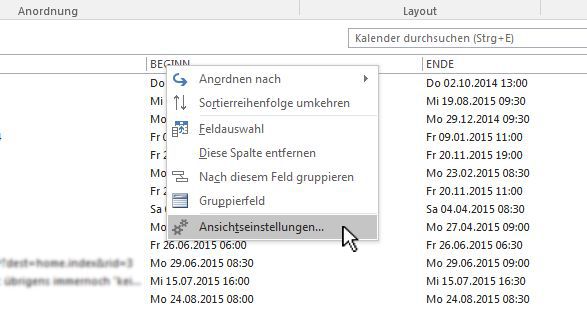
In the context menu, click on View Settings.
Step 4: Open Columns Dialog
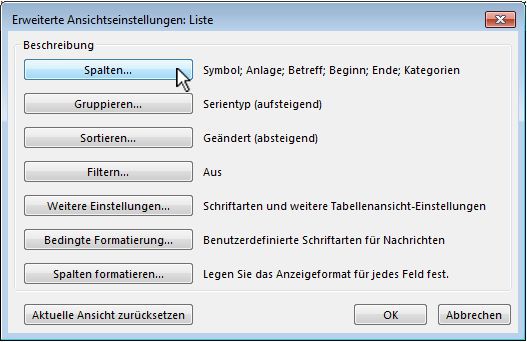
In the dialog that appears, click the Columns... button.
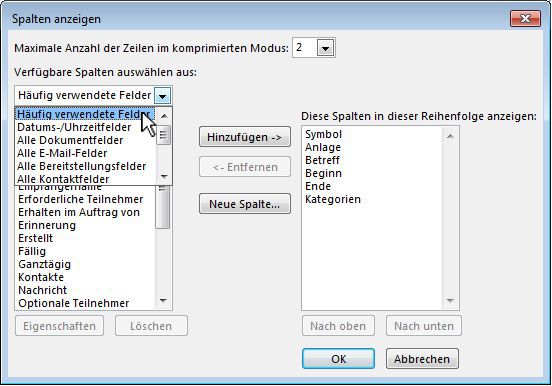
Step 5: Select Field Type
Once the column settings are open, choose Date/Time fields from the dropdown list of available columns.
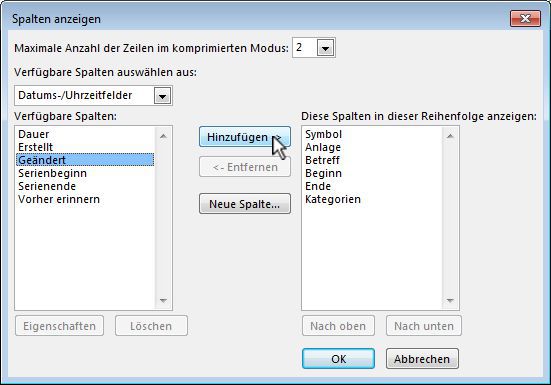
Step 6: Add the “Modified” Column
Select the column option Modified and click Add →.
Step 7: Sort by Modified Date
The new column is now visible. Click the column header “Modified” to sort all appointments by their last modified date.
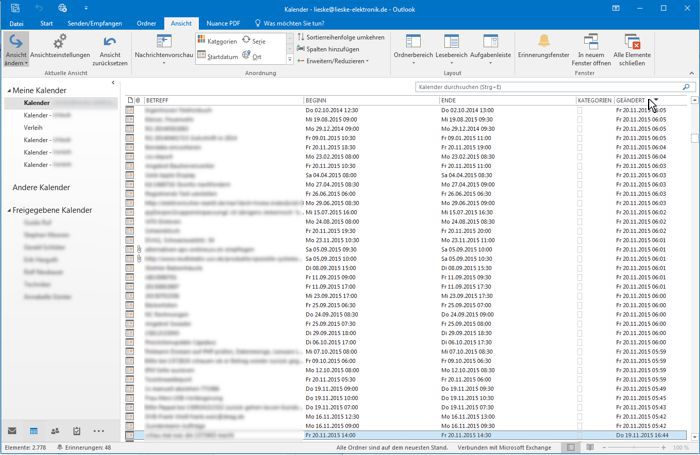
Step 8: Find Dismissed Entries and Re-enable Reminders
Using the new column, you can identify the dismissal timestamp: all dismissed appointments will share the same modified date. Click each affected appointment and re-enable the Reminder. Once saved, the reminder reappears in the reminder window.
► Note: The appointment list may be grouped, for example by tasks vs. appointments, and by recurrence type (monthly, yearly, weekly). Make sure to check every grouping level for dismissed reminders.
Notes for Newer Outlook Versions
|
Outlook 2019 / Microsoft 365 (Classic) The procedure is identical. Menu labels may differ slightly, but the core approach (List view ► Add “Modified” column ► sort) remains the same. |
New Outlook (2024+) The new web-based Outlook uses a different reminder management system. Check the calendar view directly and filter by the last-modified timestamp to identify recently changed appointments. |
Prevention: Avoiding the Next Accident
The “Dismiss All” button is prominently placed in the reminder window and often appears directly under the mouse cursor. These measures reduce the risk:
- Do not position the reminder window on top of other windows – pin it to the taskbar instead
- Process reminders regularly to avoid large backlogs
- When many reminders are open: sort the list by date first and dismiss individually rather than using “Dismiss All”
|
Questions or feedback? Our team is happy to help: sales@industry-electronics.com | Tel. +49 (0)7666 / 88499-0 |