



|
KnowHow ► Windows & Office
Setting Up Outlook 2007 with Office 365 ExchangeOutlook 2007 cannot connect to Office 365 Exchange without preparation. This guide explains which service packs and tools are required and how to set up the mail profile correctly. |
► Note: Outlook 2007 has not been officially supported by Microsoft since October 2017. For new installations we recommend upgrading to Outlook 2019, Outlook 2021 or Microsoft 365. This guide is intended for environments where Outlook 2007 is still in use.
The Problem
Anyone running Outlook 2007 who tries to connect it to an Office 365 Exchange server will find that the setup fails – even though entering an email address and password should be all that is needed. Outlook 2007 cannot communicate with Office 365 out of the box because it was developed several years before the current Exchange server.
Step 1: Update Outlook 2007
First, the entire Office 2007 package must be updated. To check the installed version:
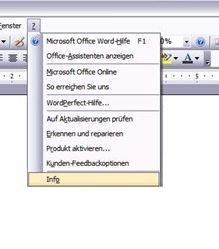
In Outlook 2007, click the question mark in the menu → About.
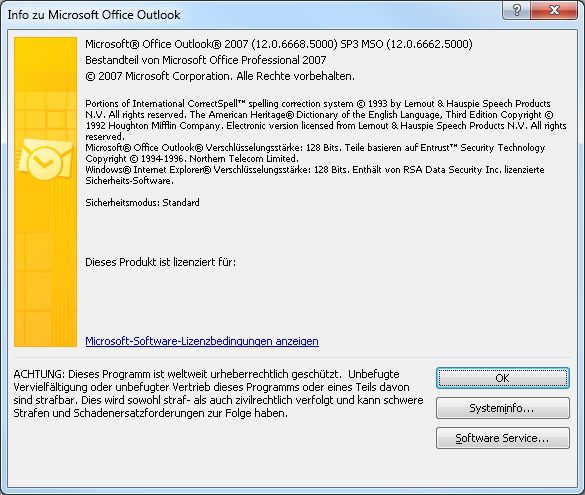
The information window shows the current program version. The top line should show SP3 (Service Pack 3). If this is missing or only SP2 is shown, one or two service packs need to be downloaded and installed.
|
Service Pack 2 for Office 2007 Download from the Microsoft Download Center. Only required if SP2 is not already installed. |
Service Pack 3 for Office 2007 Includes all updates up to SP3. Download from the Microsoft Download Center. Required for Office 365 compatibility. |
After installation: restart the computer.
Step 2: Install the Office 365 Desktop Setup Tool
After restarting, download and install the Office 365 Desktop Setup Tool for Office 2010 and Office 2007. This is the most important step for enabling communication with Office 365. The tool is only available in English, which is not a problem for functionality.
As a side benefit, this patch also adds the ability to save files to Microsoft OneDrive.
Step 3: Set Up the Account in Outlook
After installing the patch, set up the account in Outlook via File → Add Account as usual. If the setup fails because previous attempts have corrupted the mail profile, follow these steps:
- Open Control Panel → Mail (32-bit) and delete the existing profile.
- Create a new profile.
- Start Outlook and set up the account again.
► Tested on: Windows 7, Windows 8 and Windows 10.
|
Questions or support? Our team is happy to help: sales@industry-electronics.com | Tel. +49 (0)7666 / 88499-0 |