



|
KnowHow ► Networking & Wi-Fi
Improve Your Wi-Fi: 15 Tips for Better Range and Signal QualityPoor reception, dead zones, slow transfers? These 15 tips will help you reliably optimise your Wi-Fi network – from a simple channel change to building your own directional antenna. |
Tip 1: Choose the Right Wi-Fi Channel
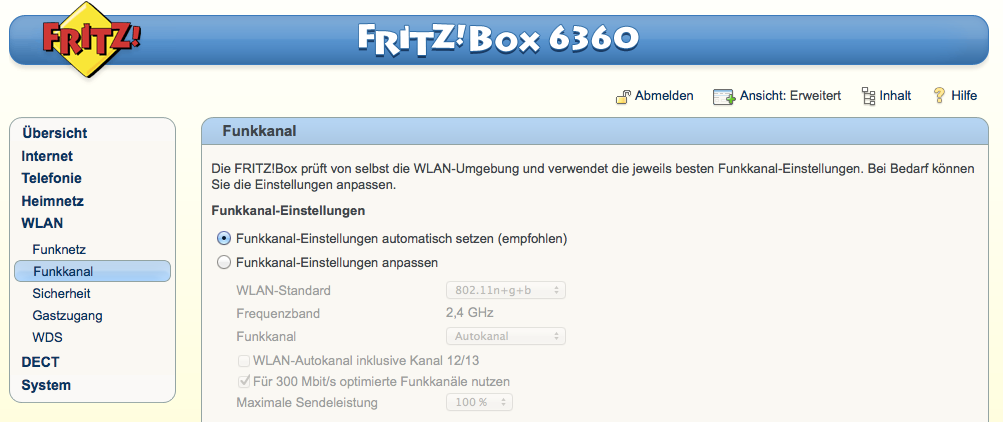
In the 2.4 GHz band there are 13 channels, but only channels 1, 6 and 11 are non-overlapping. If you share a channel with many neighbours, your throughput drops noticeably. A Wi-Fi Analyzer app (e.g. WiFi Analyzer for Android or inSSIDer for Windows) shows you instantly which channel is least congested. Set the least-used channel in your router’s settings.

Tip 2: Add a High-Gain Antenna
Many routers support aftermarket high-gain antennas. Even a simple 5 dBi antenna instead of the supplied 2 dBi standard antenna can significantly extend range. Check the connector type (RP-SMA vs. SMA) and the antenna pattern: omnidirectional antennas radiate in all directions, while directional (Yagi) antennas focus the signal toward a target.
Tip 3: Identify and Remove Interference Sources
Microwave ovens, cordless DECT phones, Bluetooth devices and other routers all operate in the 2.4 GHz band and can severely interfere with your Wi-Fi. Thick concrete walls and metal cladding also attenuate the signal. Position the router centrally and elevated, away from microwave ovens. In the 5 GHz band, most of these interferences no longer apply.

Tip 4: Create a Wi-Fi HeatMap
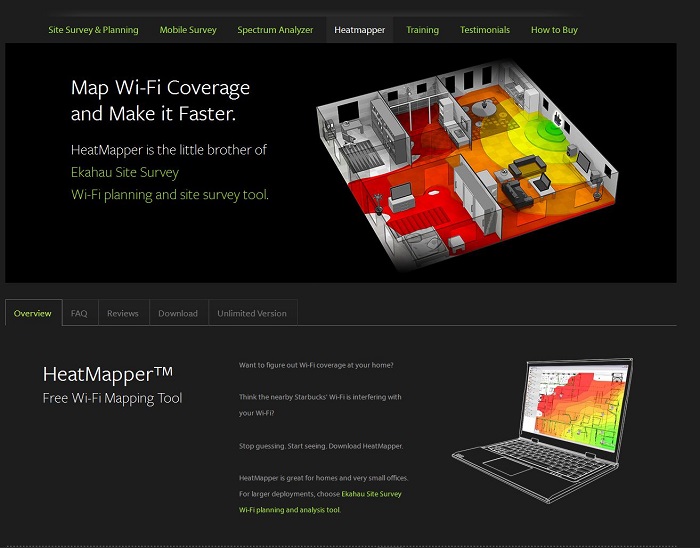
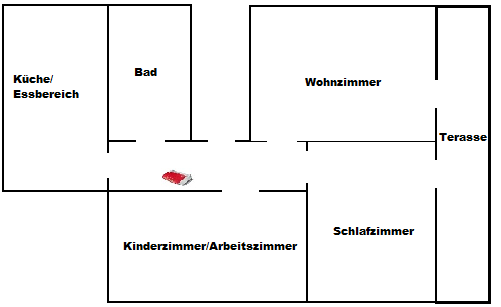
A signal strength heatmap shows exactly where Wi-Fi is strong or weak in your building. Tools such as Ekahau HeatMapper (Windows, free) or NetSpot (Mac/Windows) generate a colour-coded map over an imported floor plan.
 |
 |
Tip 5: Check Your Wi-Fi Standard
A Wi-Fi 6 router does nothing for a laptop still running 802.11n. Check which standards your devices actually support.

| Standard | Max. Speed | Band |
| 802.11n (Wi-Fi 4) | 450 Mbit/s | 2.4 / 5 GHz |
| 802.11ac (Wi-Fi 5) | 3.5 Gbit/s | 5 GHz |
| 802.11ax (Wi-Fi 6/6E) | 9.6 Gbit/s | 2.4 / 5 / 6 GHz |
| 802.11be (Wi-Fi 7) | 46 Gbit/s | 2.4 / 5 / 6 GHz |
Tip 6: Optimise Router Settings
Many routers do not ship with maximum transmit power. Increase it to 100% if the router allows it. On a FritzBox, find this under WLAN ► Radio Network ► Advanced Settings.
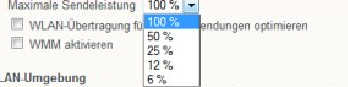

Tip 7: Router Roaming (Second Router as Access Point)
With a second router acting as a pure access point, mobile devices roam seamlessly between both. Connect the second router via LAN to the main router, disable its DHCP server, and assign it an IP within the main router’s address range.
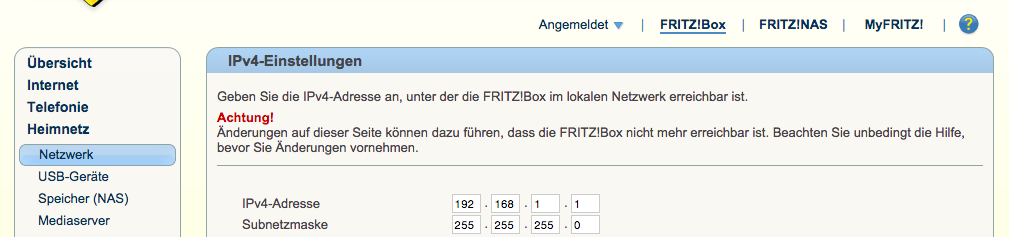
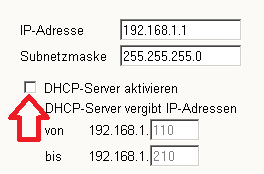
Tip 8: Use Powerline Adapters
Powerline adapters carry network signals over the existing mains wiring – ideal for areas Wi-Fi cannot reach. Current AV2-2000 adapters achieve up to 2,000 Mbit/s theoretical throughput. Combined with a Wi-Fi-capable powerline adapter you can add a Wi-Fi hotspot anywhere in the building.
Tip 9: Upgrade the Receiving Device
Poor reception is not always the router’s fault. Older laptops and PCs often have only a 1×1 MIMO antenna with limited performance. An external USB Wi-Fi adapter (e.g. 802.11ac or Wi-Fi 6) can significantly improve reception on older hardware – without replacing the router.
Tip 10: Switch to 5 GHz or 6 GHz
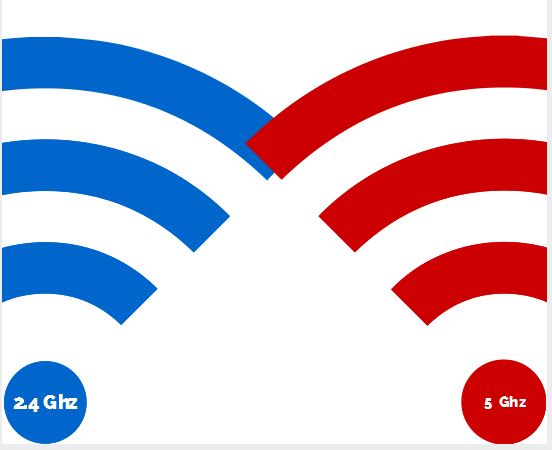
The 2.4 GHz band is often congested. The 5 GHz band provides more channels, higher speeds and less interference – at the cost of shorter range. With Wi-Fi 6E and Wi-Fi 7, the virtually interference-free 6 GHz band is also available.
Tip 11: Spot Unauthorised Wi-Fi Users
If someone is sharing your Wi-Fi without permission, every other device suffers. Check your router’s connected-devices list. Block unknown entries immediately and change your Wi-Fi password. Use WPA3 where possible, or at minimum WPA2 with a long random passphrase.

Tip 12: Update the Router Firmware
Manufacturers regularly release firmware updates that fix not only security vulnerabilities but also Wi-Fi performance issues. Check the router’s admin interface for available updates. Many modern routers (FritzBox, Asus, TP-Link) offer automatic update notifications.

Tip 13: Wi-Fi Booster – Repeater or Mesh?
Wi-Fi repeaters extend the signal and can eliminate dead zones. Modern mesh systems (e.g. AVM Fritz!Mesh, TP-Link Deco, Asus ZenWiFi) go further: all nodes form a unified network with a single SSID and hand off devices seamlessly. For new installations, mesh systems are generally preferable to classic repeaters.
Tip 14: The Classic Restart (30-Second Rule)
A full router restart often resolves temporary performance issues caused by overflowing ARP tables or memory leaks. Switch the router off, wait at least 30 seconds, then switch it back on. This fully clears all temporary states.
Tip 15: Build Your Own Parabolic Antenna
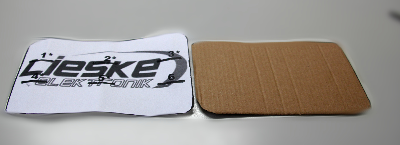
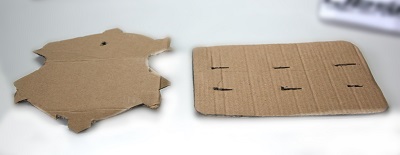
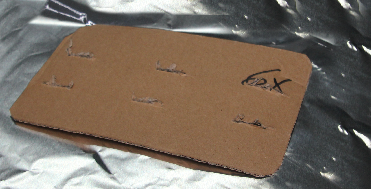
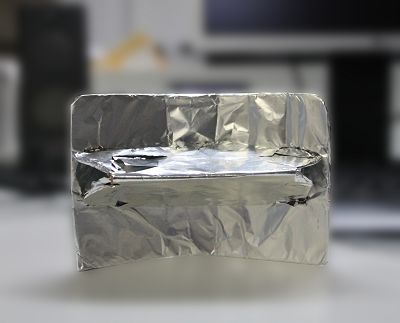
For the experimentally minded: a homemade parabolic reflector from an ordinary strainer can significantly focus an existing Wi-Fi antenna and multiply the range in a specific direction. This approach is especially interesting for point-to-point links between two buildings.
 |
 |
 |
 |
|
Questions about Wi-Fi optimisation? Our networking team is happy to help: sales@industry-electronics.com | Tel. +49 (0)7666 / 88499-0 |